Showing posts with label how to restore iphone. Show all posts

25.9.13

Error downloading iOS7 HOW TO FIX .

Apple  released the public version of the iOS 7.0 version and its a super number of downloads happening , and you cannot abuse Apple for the error you are getting while downloading the iOS 7 on your device through the software update section in Settings. Here’s an error which many users have been reporting right now:
iOS-7-Download-Error

What is more annoying here is that you need to start the download once again if the error occurs, and the download doesn’t resume from where it had stopped. Devices like the iPad have got the iOS file of size more than 1 GB, and that is where the issue is happening. The actual error reads:
Software Update Failed
An Error occurred Downloading iOS 7.0

Reason:
The reason for this is only one – Apple’s server is facing a huge load right now and there is nothing else that is causing this error. If there was, the error would have been different, like the Error 3000 which we had explained earlier.

Solution / Fix:
For now, we would suggest you to be patient and wait for a few hours till the Apple servers load gets reduced, and then you would be able to easily download the iOS 7 file, no matter what the size is. The Apple download servers are quite fast most of the time but when any major releases are done, this downtime is a little expected, and you as an end user cannot do anything about it than to wait for the speed to pick up. Just retrying it right now would be a waste of data and time.

We’ll be updating you here as soon as we see the Apple servers picking up speed and not showing an error (we did install iOS 7 on an iPad Mini but the iPhone shows the error as mentioned above), so we too would be trying the download and then can get an idea when the download can happen without a hassle.
If at all you wanted to download the iOS 7 IPSW files, go to the following links based on the device:
Read More

how to install IOS 7 on iPhone 4 ,4s,5

You should  always perform a backup before applying any major new firmware release. If you back up your devices to iCloud or sync with iTunes via Wi-Fi, temporarily disable both options.
To disable iCloud backup, toggle the iCloud Backup switch to OFF under iOS Settings > iCloud > Storage & Backup. To disable iTunes Wi-Fi sync, tether the device to a Mac or PC via a USB cable and uncheck the “Sync with this iPhone over Wi-Fi” box under your device’s Summary tab in iTunes.
iTunes-11-Welcome-to-your-new-phone


Make sure you’re running the most up-to-date version of iTunes (you should only download the latest version of iTunes from Apple’s website). Fire up the program and choose your device in the upper right part of the iTunes window. Should iTunes warn you there’s a new version of iPhone firmware update available, just cancel the prompt.

itunes11
Click on the device’s name in the upper-right part of the iTunes window, navigate to the Summary tab and hit the “Back Up Now”. Fix yourself a cup of coffee as creating a backup on your computer may take a while, depending on its contents and storage capacity.
iTunes-11-Back-up-iPhone
While we’re at it, update your iOS apps by going to the Updates tab in the iTunes Apps section. Now’s also a good time to copy the device backup file to an external drive (PC) or initiate a manual Time Capsule backup. To do the latter, just choose Back Up Now from your Mac’s menu bar. If you don’t see the option, tick the “Show Time Machine in menu bar” box in System Preferences > Time Machine.
Screen-Shot-2013-09-17-at-22.19.11
To see where iTunes stores iOS device backup files on your computer, choose Preferences from the iTunes menu and navigate to the Devices tab. In case you were wondering, iOS backups keep all your app data and settings, sans your media and apps themselves because these items already exist in iTunes/iCloud.

Keeping a device backup on your computer is not only a precautionary measure, it’ll also speed up restoring your device should you encounter any issues – as opposed to restoring from an iCloud backup.
iTunes-11-Restore-iPhone
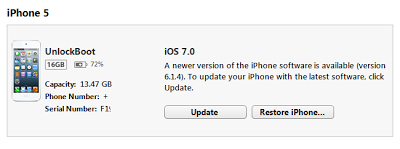
You’re now ready to install iOS 7: hit the Restore iPhone button in iTunes and wait until the software downloads and verifies the latest iOS 7 build with iOSDownload.
Read More

11.9.13

Recover iPhone Stuck on Apple Logo


 iPhone Stuck on Apple Logo how to Recover? 


Issue happened (Stuck iPhone on Apple Logo)  after jailbreak or updating your iPhone to the latest OS without enough battery-life, or you try to reset your jailbroken iPhone to factory setting   . To solve this issue first you have to enter in Recovery  mode.

Required Softwares
Download iTunes from here
Download firmware from here

Step 1: Switch off your iPhone.

Step 2: Open iTunes , connect your iPhone , iPad or IPod to the computer


Step 3Hold both POWER BUTTON and HOME BUTTON at the same time for 10 seconds. (soft reset)

After  10 seconds leave the POWER BUTTON while keep holding HOME BUTTON .
Step 4: iPhone will start up in Recovery mode, Keep on holding HOME BUTTON until a recovery warning messages appears in iTunes.Cable connecting to Itunes icon will appear . Now your iphone is in recovery mode.


Step 5: Once you have reached Recovery mode, now you can restore  your iphone or ipad or ipod.
Step 6: Hold Shift and press Restore iPhone , a popup screen will appear in order to Choose  desired firmware .


Step 7: Your device will now start restoring back to factory settings and Jailbreak will be removed.
Step 8: When done select backup to restore all settings and apps. (if you wish to restore backup)


The difference between DFU-mode & Recovery mode .

DFU-mode: will give you black screen 
Recovery mode: will give you screen shows an icon ‘cable connecting to iTunes’

Read More

12.8.13

install IOS 7 on iPhone 5 , 4S, 4 & IPAD.

How to Install iOS 7 Without Developer Account

there were rumor before that once you have upgraded your device to iOS 7 then you cannot restore it back but it is not true, you can restore it to iOS 6.1.4 / 6.1.3 anytime you want. It is certain that on upgrading you will lose your jailbreak, however you can install iOS 7 firmware on your device if your UDID is registered on Apple’s developer program or you can follow our tutorial to install iOS 7 without developer account or registered UDID.
Install iOS 7 on iPhone 5


Now that you are aware of some prerequisites here, let us move on to the step by step tutorial for installing iOS 7 Beta on your iPhone 5, 4S, 4 or iPad. But before you proceed, it is important to know that you may loss all your data, jailbreak or warranty in the process if something goes wrong. If you do not want this to happen then forget about this post otherwise, move to the following steps.


Note: You need to 1.1GB free disc space and a fast internet connection.
How to Install iOS 7 on iPhone, iPad or iPod Touch


Step 1: Download iOS 7 beta by registering yourself to Apple’s developer account or you can simply download it from here.


Step 2: Before going any further, upgrade your iTunes to latest version and backup your entire data.


Step 3: Now get your iDevice to DFU mode while keeping it connected to your desktop.


Step 4: If you have Mac, then use "Option" and Restore on iTunes, and if you have PC, then "Shift" and Restore.


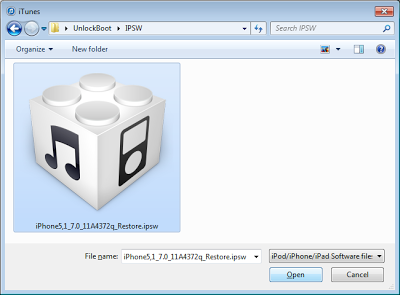
Step 5: Navigate the pop up window to the file you downloaded in Step 1.
iOS 7 Install tutorial
Step 6: Watch restoration, if you have already registered your UDID then you will be activated automatically. If you want to revert then on Step 5, follow to the iOS 6.1.3 or 6.1.4 file downloaded onto your computer.
iPhone 5 IOS 7.0 Install iTunes
Read More
Powered By Blogger

Search This Blog

Popular Posts

Designed By Seo Blogger Templates